
- PlainJPG
- Batch convert HEIC to JPG on Windows
Guide · Windows 10 & 11How to batch convert HEIC to JPG on Windows (hundreds of iPhone photos at once)
Hundreds of iPhone photos on a Windows PC, and not one of them will open. Windows has no built-in batch converter: Photos and Paint save one photo at a time. A desktop converter does the whole folder in one go. Every method is below, ranked by effort.
Free for 25 images · $15 once for 2 PCs · nothing uploaded
Why a camera roll is hard to convert on Windows
You copied a year of photos off the phone, one folder per month, and every file is HEIC. Photos may show them; the web form, the older editor and the print shop refuse them. The image inside is compressed with the HEVC video codec, which Windows does not decode on its own; Microsoft's free HEIF Image Extension says plainly that the HEVC Video Extensions package ($0.99 on the Store) must be installed before .heic images will open.
Even with the codecs installed, the built-in tools convert one photo at a time, and the copies often lose the date taken, so every gallery sorts them to the wrong year. A batch converter fixes the first problem; a careful one fixes both. Facts about other tools were checked on their own sites on 23 October 2026.
Every method, ranked by effort
1. Photos or Paint, one photo at a time
Install the free HEIF Image Extension and the $0.99 HEVC Video Extensions from the Microsoft Store. Then open a photo in Photos, use the three-dot menu, Save as, and pick JPG; or open it in Paint and use File, Save as, JPEG picture. One file per round trip, and Paint writes a bare JPG with no camera data.
2. CopyTrans HEIC: select, right-click, convert
CopyTrans HEIC (Windows 7 to 11, free and premium plans) adds Convert to JPEG with CopyTrans to the Explorer right-click menu. Select the photos, right-click, and the JPGs appear next to the originals with the date taken and location kept, converted locally. The free plan handles up to 100 images in one go and writes JPEG only; PNG, PDF and unlimited batches belong to CopyTrans HEIC Pro, priced by quote. It also does not make the Photos app open HEIC, only Windows Photo Viewer.
3. iMazing Converter: drag a folder
iMazing Converter from DigiDNA is 100% free on Windows and Mac. Drag HEIC files or folders onto its window, pick JPEG or PNG, set the quality, tick the option to keep EXIF (offered for JPEG), and hit Convert. Processing happens on your device. It does not list an Explorer right-click, and it does not say whether file dates are copied.
4. A batch converter from the Microsoft Store
The Store has many free HEIC converters. Two that list batch processing are Unlimited HEIC Converter (no fees, no registration, JPG or PNG) and HEIC to JPG batch converter (JPG, PNG, GIF or BMP, with a JPG quality slider). HEIC to JPG Real Converter converts locally by drag and drop and offers an optional Premium purchase. None of the three listings says whether EXIF is kept or whether Microsoft's codecs are needed, so convert one photo and check its Properties before converting a thousand.
5. XnConvert or IrfanView, if you already use them
Both are free for private use (companies pay: XnConvert from 15 euro a licence, IrfanView US$18). XnConvert for Windows 10 and 11 is a batch converter that lists HEIC, HEIF, AVIF and WebP among its input formats and can watch a folder. IrfanView has batch conversion too, but its own FAQ says HEIC needs the two Microsoft Store extensions or a third-party codec first.
6. ImageMagick from the command line
ImageMagick is free and open source, runs on Windows 10 and 11 (x86, x64 and ARM64), and its Windows build includes the libheif and libde265 libraries that read HEIC. Install it, open a terminal in the folder, and run:
magick mogrify -format jpg -quality 92 -auto-orient *.heicEvery HEIC in the folder gets a JPG next to it, upright, with the EXIF profile carried over. Subfolders need a loop, file dates are not copied, and a typo in a mogrify command can overwrite files, so test on a copy. PowerShell alone cannot decode HEIC; it is only the shell you run ImageMagick from.
7. PlainJPG: drop the folder tree
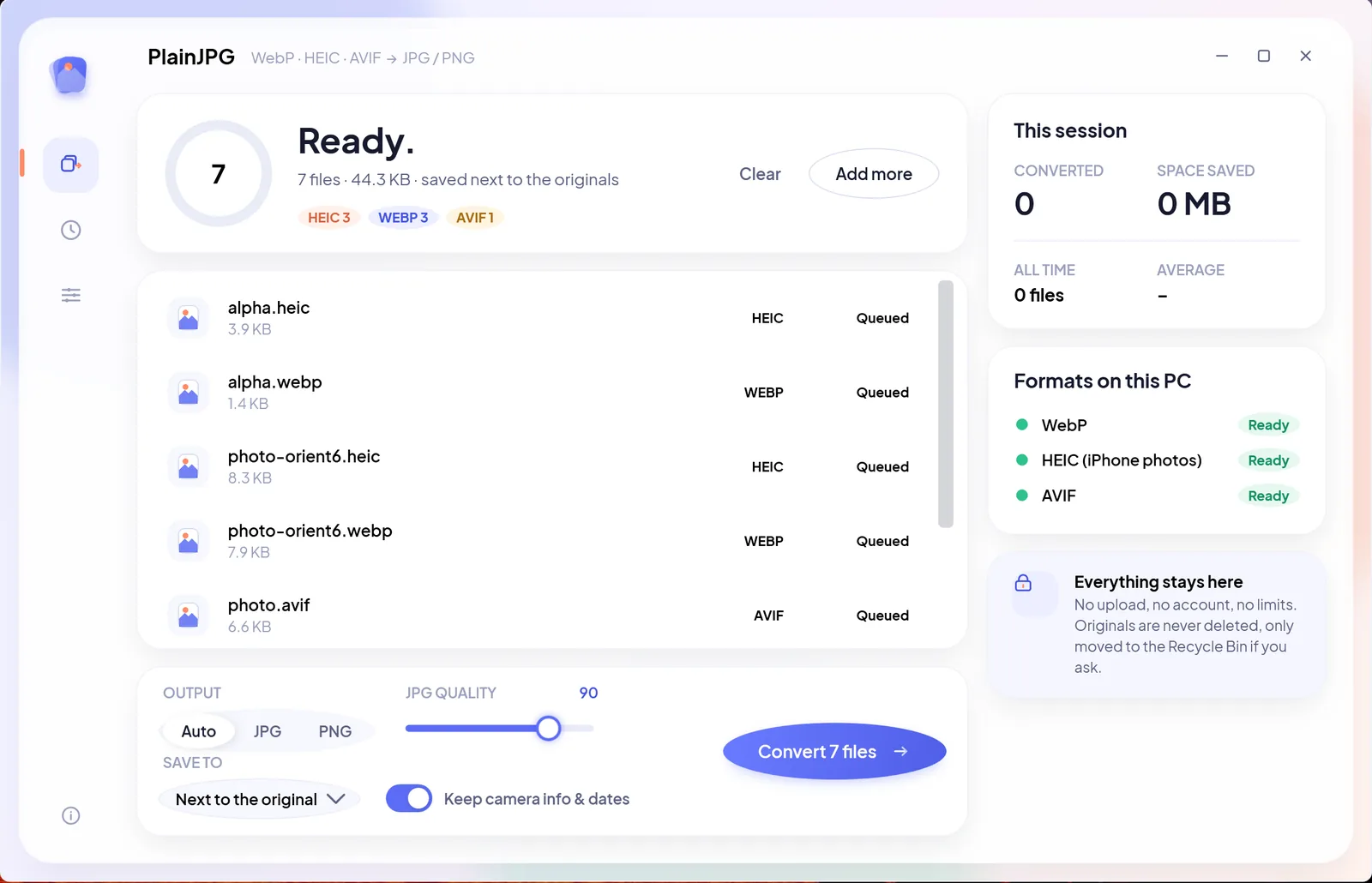
Drop the top folder and walk away: every HEIC in it and its subfolders becomes a JPG with the same name, in the same place, with the date taken, GPS, orientation and the file's own dates intact. PlainJPG is a $15 Windows app that converts whole folders of HEIC, WebP and AVIF to JPG or PNG on the PC, keeps EXIF and file dates, nothing uploaded. No file count or size limit, every CPU core at once, a thousand photos in minutes. The HEIC decoder is built in, so it works on a fresh Windows install. The first 25 images are free, so you can check the dates survived before paying; after that it is $15 once for 2 PCs.
- Install PlainJPG (free download, Windows 10 version 2004 or later and Windows 11, x64 and ARM64).
- Drop the folder on the window, or select any number of
.heicfiles in Explorer, right-click, and choose Convert to JPG with PlainJPG. - Pick JPG (quality 92 by default), PNG, or Auto, and choose where the copies go: next to the originals, into one folder, or replacing the originals, which then go to the Recycle Bin.
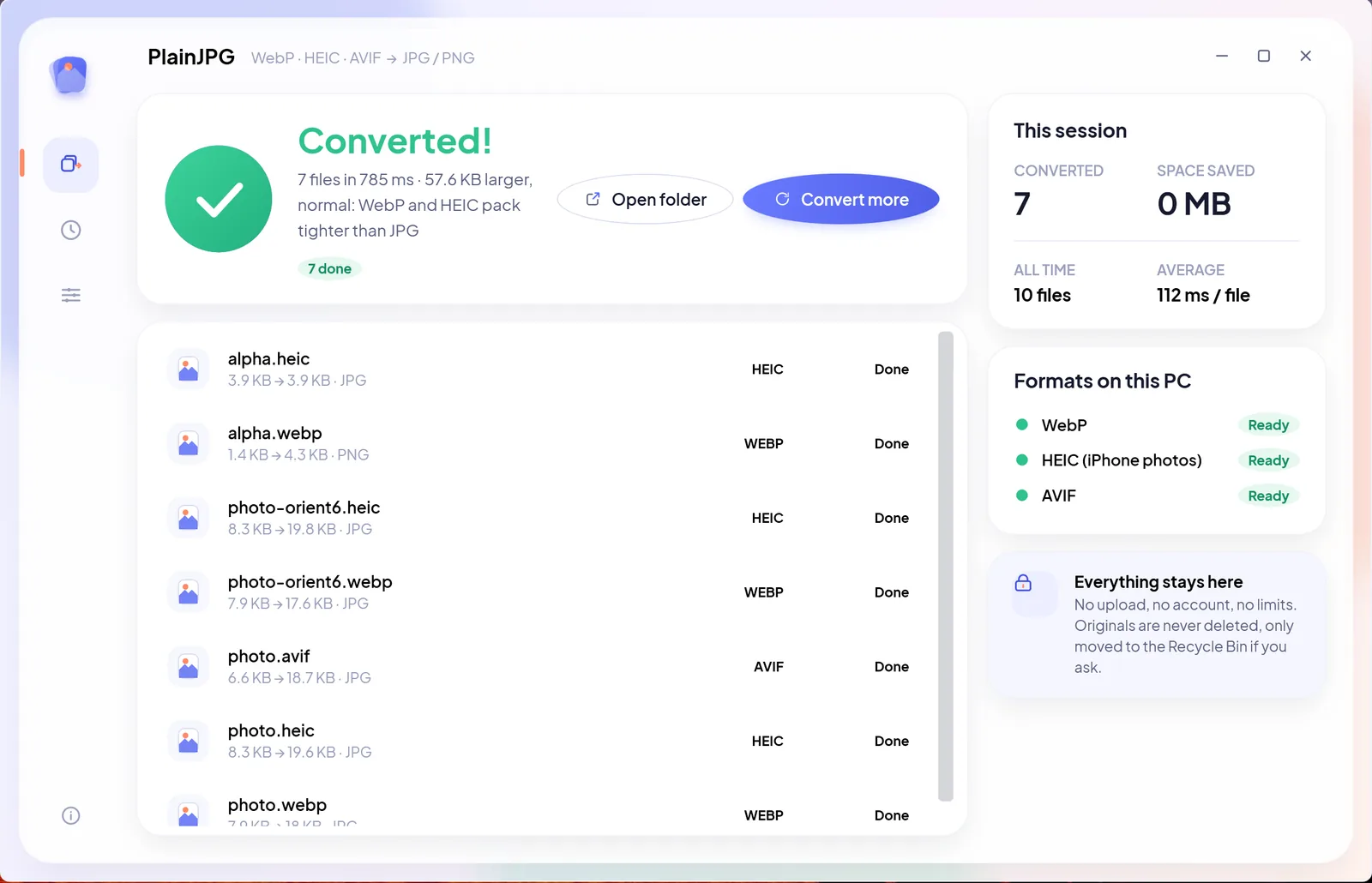
- Click Convert. Each row shows the new name and size; the History panel remembers where every batch was saved.
The methods side by side
| Method | Cost | Files per go | Subfolders | Keeps EXIF | Keeps file dates | Needs Microsoft's HEVC codec |
|---|---|---|---|---|---|---|
| Photos or Paint | $0.99 for HEVC | One | No | Paint: no | No | Yes |
| CopyTrans HEIC | Free plan; Pro by quote | Up to 100 | Not listed | Date taken and location | Not listed | No, brings its own |
| iMazing Converter | Free | Files or folders | Not listed | Yes, for JPEG | Not listed | Not stated |
| Store batch apps | Free, some optional purchases | Many | Not listed | Not stated | Not stated | Not stated |
| XnConvert | Free for private use | Any | Yes | Metadata editing listed | Not listed | Not stated |
| ImageMagick | Free | Any | With a loop | Yes | No | No, libheif built in |
| PlainJPG | $15 once after 25 free | Any | Yes | EXIF, XMP, orientation | Yes | No, decoder built in |
What a careful batch keeps
- Date taken, camera, GPS: the EXIF block, so Lightroom, Google Photos and Windows Photos still sort and map the photos.
- Orientation: iPhones store many photos sideways with a rotation tag. PlainJPG writes the pixels upright and resets the tag; ImageMagick does the same with -auto-orient. Copy the tag without the pixels and the JPGs show sideways in older viewers and web forms.
- XMP: ratings, keywords and edit history.
- File dates: created and modified, so the converted folder still sorts the way the original did. This is the one most converters skip.
- The originals: never deleted outright. PlainJPG's Replace option moves them to the Recycle Bin after the copy is written and checked.
Sharing publicly? Switch Keep camera info off and the JPGs carry no metadata at all. Details of every field on the HEIC to JPG page; PNG output on the HEIC to PNG page; a licence is $15 once.
Batch conversion questions
How can I convert multiple HEIC files to JPG for free?
Install iMazing Converter, which is free, and drop the files or their folder on it. Or install CopyTrans HEIC, select up to 100 photos in Explorer, right-click and choose Convert to JPEG with CopyTrans. Both keep the main EXIF data. PlainJPG converts the first 25 images free, then costs $15 once; it is the option that also keeps file dates and handles subfolders.
How do I batch convert HEIC to JPG on Windows 11?
Windows 11 has no built-in batch converter; Photos and Paint save one photo at a time, and only after the HEIF and HEVC extensions are installed. For a batch, use a desktop converter: drop the folder on iMazing Converter or PlainJPG, right-click a selection with CopyTrans HEIC, or run ImageMagick's magick mogrify in the folder.
What is the best program to batch convert HEIC to JPG?
For a free one-off, iMazing Converter. For scripting, ImageMagick. For a camera roll sorted into subfolders, where the JPGs must keep the date taken, GPS, orientation and the file's own dates, PlainJPG, which converts the whole tree in one drop using every CPU core.
Does batch converting HEIC to JPG lose quality?
The pixels are decoded once and written as JPG at the quality you pick. At PlainJPG's default of 92 the difference from the HEIC is invisible for photographs; set 100 for the least possible loss, or choose PNG, which is lossless. The resolution never changes.
Will the JPGs keep the date taken and the location?
Only if the converter copies the EXIF block. iMazing Converter does for JPEG, CopyTrans HEIC says it keeps the date taken and geolocation, ImageMagick keeps profiles by default, and PlainJPG copies EXIF and XMP, corrects orientation and also copies the file's created and modified dates. Paint and most online tools write a bare file.
Can I convert 1,000 HEIC photos at once on Windows?
Yes. Drop the folder on PlainJPG and every HEIC in it and its subfolders is converted in one batch with no file count or size limit, in parallel on all CPU cores. ImageMagick handles any number from the command line too. CopyTrans HEIC's free plan stops at 100 per go.

The whole camera roll, as JPG, still sorted by date.
One drop, every subfolder, every date and GPS tag kept, nothing uploaded. Try it on 25 photos first.
Installed from the Microsoft Store? Same app, same key: paste it in Settings → Licence. Related: HEIC converters for Windows compared · single photos on Windows 10 and 11