
- PlainJPG
- Convert HEIC to JPG on Windows 10 and 11
Guide · Windows 10 & 11How to convert HEIC to JPG on Windows 10 and 11 (every method)
Your iPhone photo is on the PC and Photos says the format isn't supported. You can install Microsoft's free HEIF extension plus the $0.99 HEVC codec and save a copy from Photos or Paint, or use a converter that needs neither. Every method, step by step.
Free for 25 images · $15 once for 2 PCs · nothing uploaded
Why Photos says "this file format isn't supported"
You double-click the photo and Photos shows a broken thumbnail or tells you the format isn't supported; Paint refuses it outright. Every iPhone since iOS 11 shoots HEIC by default: Apple's name for a HEIF container holding an image compressed with the HEVC video codec, at about half the size of a JPG. Windows ships the container support but not the codec, which is patented. Microsoft's own listing for the free HEIF Image Extension says it in one sentence: the HEVC Video Extensions package must be installed to view images stored in .heic files.
That leaves you two routes. Pay Microsoft $0.99 for the codec and use the built-in apps one photo at a time, or use a converter that does the decoding for you. Both are below, followed by the question you will ask next: how to stop the iPhone shooting HEIC in the first place. Store prices are as shown on 23 October 2026.
Method 1: install Microsoft's extensions, then save from Photos
- Open the Microsoft Store and install HEIF Image Extension (free, published by Microsoft).
- Install HEVC Video Extensions ($0.99, from Microsoft Corporation). The Store also lists a free HEVC Video Extensions from Device Manufacturer edition; the Store offers it only on some PCs, so if yours does not show it, the $0.99 one is the route.
- Open the HEIC in Photos. On Windows 11, use the three-dot See more menu, choose Save as, and set the type to JPG. The older Photos app on Windows 10 converts through editing: Edit & Create, Edit, then Save a copy, which writes a JPG.
- Check the copy. Right-click the JPG, Properties, Details: if Date taken is empty, the app dropped the EXIF block, and you will want a converter that keeps it.
This is the cheapest route if you also want Explorer thumbnails and Photos to open HEIC from now on. It is slow for more than a few photos, and nothing in it copies the file's created and modified dates.
Method 2: Paint, Save as JPEG picture
With the same two extensions installed, right-click the photo, Open with, Paint, then File, Save as, JPEG picture (or PNG picture, for a lossless copy). Paint is the quickest built-in way to get one JPG, and the worst for photos: it writes a bare file with no date taken, no camera, no GPS. Use it for a screenshot of a HEIC, not for the holiday album.
Method 3 (does not work): renaming .heic to .jpg
Renaming changes the label, not the contents. The file is still HEVC data; a program that trusts the extension will fail or show a corrupt-file error, and a web form that checks the real type will reject it. The only thing that turns a HEIC into a JPG is decoding the pixels and writing real JPG data, which is what every method here except this one does.
Method 4: a free converter instead of the codec
If you would rather not buy the codec, or the Store is blocked on a work PC, use a converter instead. CopyTrans HEIC brings its own HEIC support and PlainJPG has its decoder built in; iMazing Converter does not say what it needs. Facts checked on each maker's site today:
- iMazing Converter (DigiDNA): 100% free, Windows and Mac. Drag HEIC files or folders onto the window, choose JPEG or PNG, adjust quality and resolution, keep EXIF when writing JPEG. Processing stays on your device.
- CopyTrans HEIC: free and premium plans, Windows 7 to 11. Adds Convert to JPEG with CopyTrans to the right-click menu, up to 100 images in one go, with the date taken and location kept. PNG and PDF are Pro features. It also lets Explorer and Windows Photo Viewer show HEIC, though not the Photos app.
- Microsoft Store converters: HEIC to JPG Real Converter (JPG, PNG or BMP, converts locally, optional Premium), Unlimited HEIC Converter (free, batch) and HEIC to JPG batch converter (free, quality slider) are the ones Google and the Store surface most. Their listings do not say what metadata survives, so test one photo.
The full side-by-side, with prices and what each keeps, is in HEIC converters for Windows compared.
Method 5: PlainJPG, for one photo or a whole folder
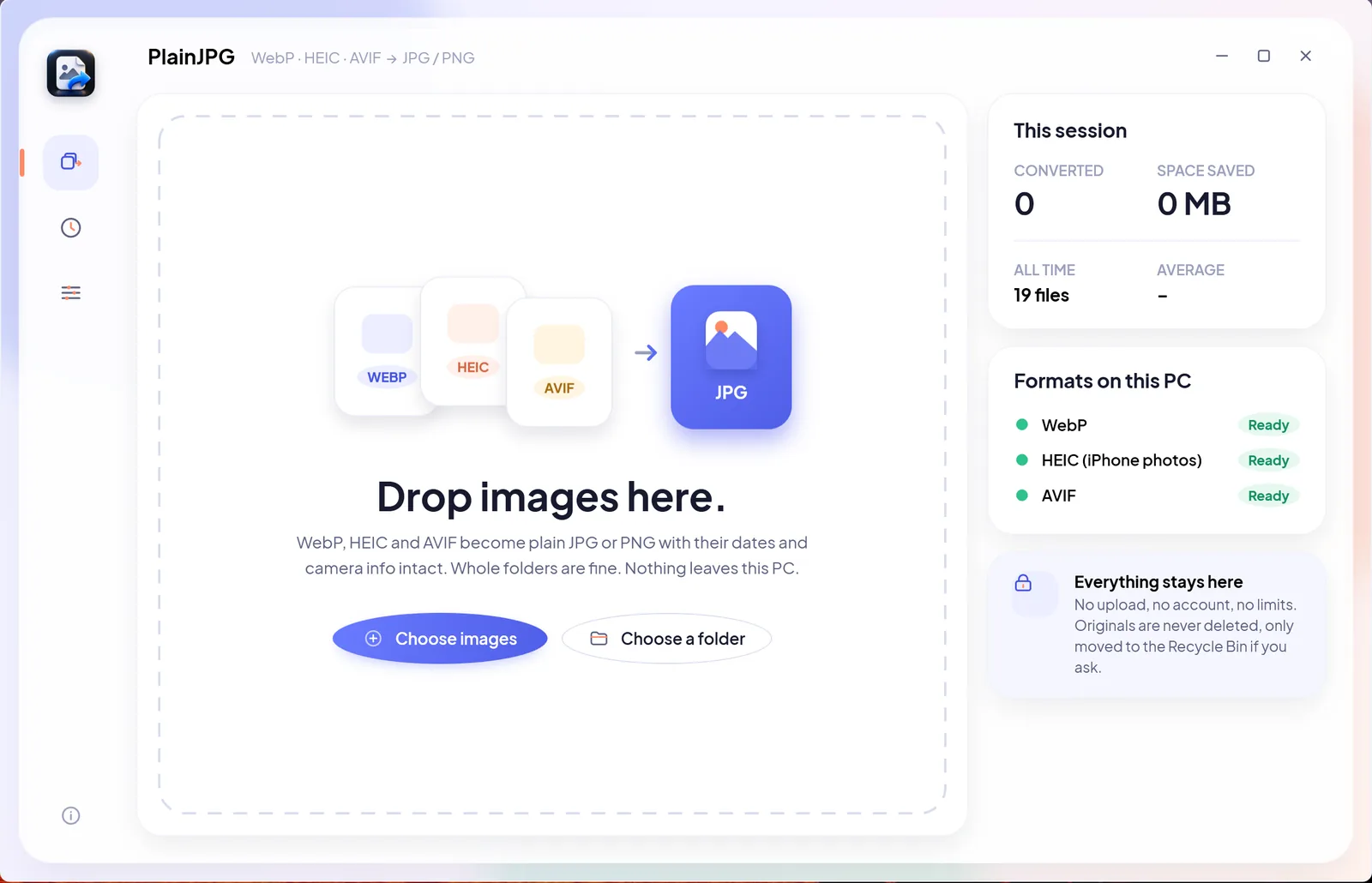
Right-click the photo, choose Convert to JPG with PlainJPG, and a JPG with the same name appears next to it with the date taken, GPS and orientation intact. A whole folder works the same way. PlainJPG is a $15 Windows app that converts whole folders of HEIC, WebP and AVIF to JPG or PNG on the PC, keeps EXIF and file dates, nothing uploaded. The HEIC decoder is built in, so it works on a fresh Windows 10 or 11 install with no Store purchase; if Microsoft's extensions are already there it uses them for hardware-accelerated decoding. The first 25 images are free, so the first batch costs nothing; after that it is $15 once for 2 PCs.
- Install PlainJPG from the free download (Windows 10 version 2004 or later and Windows 11, x64 and ARM64).
- Right-click the HEIC in File Explorer and choose Convert to JPG with PlainJPG, or drop one file, several, or a folder on the window.
- Pick JPG (quality 92 by default, or move the slider), PNG, or Auto, which picks PNG only for images with transparency.
- Click Convert. The JPG lands next to the original with the same name, the date taken, camera and GPS inside, the orientation corrected, and the file's own dates copied.
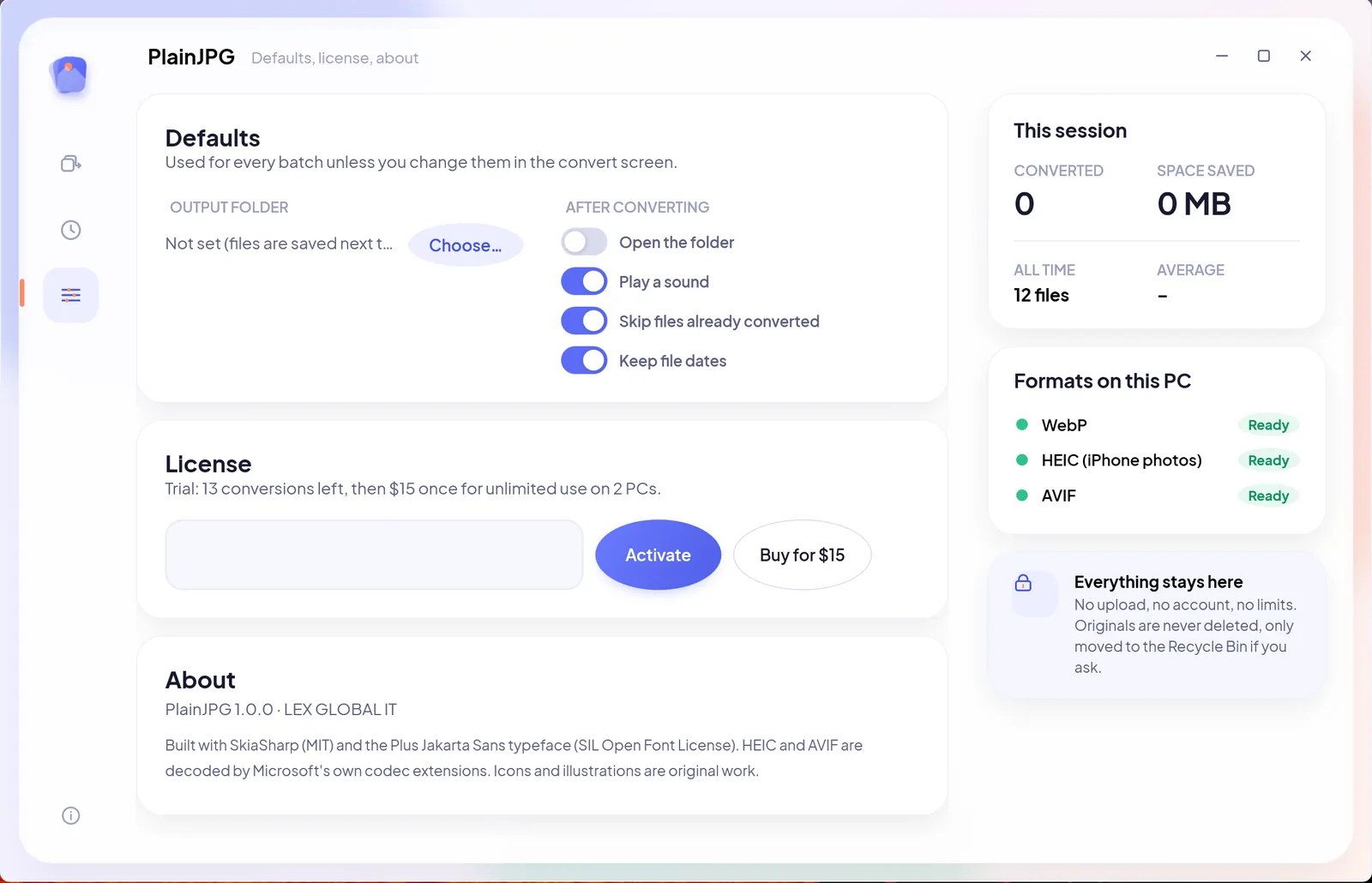
Sharing publicly? Switch Keep camera info off and the JPG carries no metadata at all. Step-by-step detail on the HEIC to JPG page, PNG on the HEIC to PNG page, and a licence is $15 once for two PCs.
Method 6: stop the iPhone shooting HEIC
None of the above changes what the phone does tomorrow. Two iPhone settings do:
- Settings, Camera, Formats, Most Compatible: new photos are JPG. They take more space on the phone, and the photos you already have stay HEIC.
- Settings, Photos, Transfer to Mac or PC, Automatic: photos are converted to JPG while copying over a USB cable. iCloud, AirDrop-to-PC tools and SD card readers still deliver HEIC.
Every method at a glance
| Method | Cost | Needs the HEVC extension | Keeps EXIF | Many photos at once |
|---|---|---|---|---|
| Photos, Save as | $0.99 for the codec | Yes | Check the copy | No |
| Paint, Save as JPEG picture | $0.99 for the codec | Yes | No | No |
| Rename .heic to .jpg | Free | No | Does not work | Does not work |
| iMazing Converter | Free | Not stated | Yes, for JPEG | Files or folders |
| CopyTrans HEIC | Free plan; Pro by quote | No, brings its own | Date taken and location | Up to 100 per right-click |
| PlainJPG | $15 once after 25 free | No, decoder built in | EXIF, XMP, orientation, file dates | Folders with subfolders, any count |
| iPhone settings | Free | No | Yes | Future photos only |
HEIC to JPG on Windows: questions
How do I convert HEIC to JPG on Windows 10?
Install the free HEIF Image Extension and the $0.99 HEVC Video Extensions from the Microsoft Store, open the photo in Photos or Paint and save a copy as JPG. Or skip the codecs: CopyTrans HEIC brings its own HEIC support and PlainJPG has its decoder built in, and iMazing Converter is free too, though it does not say whether it needs Microsoft's extensions. PlainJPG does whole folders in one drop.
How do I convert HEIC to JPG on Windows 11?
The same way as on Windows 10: with Microsoft's HEIF and HEVC extensions installed, open the photo in Photos, choose Save as from the three-dot menu and pick JPG, or use Paint's File, Save as, JPEG picture. For many photos, drop the folder on PlainJPG or right-click the files and choose Convert to JPG with PlainJPG.
Why are my photos HEIC?
Because iPhones and iPads have shot HEIC by default since iOS 11, and many Android phones offer it too. HEIC packs the same photo into about half the space of a JPG, which is why the phone makers chose it. Windows does not decode the HEVC codec inside it without an extension.
Can I just rename a HEIC to JPG?
No. Renaming changes the label, not the contents: the file is still HEVC-compressed data, and any program that trusts the .jpg extension will fail to open it or show an error. A converter decodes the pixels and writes real JPG data.
Is there a free app that converts HEIC files to JPG?
Yes. iMazing Converter is free for Windows and Mac and keeps EXIF when writing JPEG; CopyTrans HEIC's free plan converts up to 100 photos per right-click; several free converters are on the Microsoft Store. PlainJPG is free for the first 25 images and $15 once after that.
Why does Photos say the file format isn't supported?
Because the HEVC decoder is missing. Microsoft's HEIF Image Extension handles the container, but its own description says the HEVC Video Extensions package must also be installed to view .heic images. Install both from the Store, or convert the photos with an app that brings its own decoder.

Right-click. Convert to JPG. Open anywhere.
No codec to buy, nothing uploaded, and the photo keeps its date and location. The first 25 are free.
Installed from the Microsoft Store? Same app, same key: paste it in Settings → Licence. Related: batch convert hundreds of HEIC photos · HEIC converters compared