
- PlainJPG
- Save a WebP image as JPG on Windows
Guide · Windows 10 & 11How to save a WebP image as JPG on Windows (and stop Chrome giving you WebP)
You saved a picture from a website and got a .webp that nothing else will open. The browser has no setting for it: the site chooses the format. Three fixes, from a copy and paste into Paint to converting a whole folder at once.
Free for 25 images · $15 once for 2 PCs · nothing uploaded
Why Chrome keeps giving you WebP
You right-click, choose Save image as, and the file in Downloads ends in .webp even though the page said .jpg. WebP is Google's web image format from 2010. At the same visual quality it is 25 to 35 percent smaller than a JPG, so most websites and image CDNs keep a WebP copy of every picture and send it to any browser that says it can show WebP, which every current browser does. The browser saves exactly what it received.
There is no switch in Chrome or Edge to ask for JPG instead; the server decides from the formats the browser announces. Inside the browser, and in Windows Photos, WebP opens fine. Your trouble starts when the image has to go somewhere else: an older Photoshop, a Word document, a print shop's order form, a forum, a CRM, a PowerPoint on a colleague's laptop, a digital photo frame. Those want JPG or PNG, and that is what the methods below give you.
Method 1: copy the image and paste it into Paint
- Right-click the image on the web page and choose Copy image. The browser puts the decoded picture on the clipboard, not the WebP file.
- Open Paint (press Start, type Paint) and press Ctrl+V.
- File, Save as, JPEG picture. Choose PNG picture instead if the image has a transparent background or is a logo or screenshot; JPG cannot hold transparency and softens hard edges.
This is the quickest route for one picture and it works in every browser, because nothing WebP-specific ever touches the disk. Two limits: the pasted image is the version the page loaded, which can be a resized copy of the original, and Paint writes a bare file with no metadata.
Method 2: save the .webp, then Save as from Photos or Paint
Save the image as usual, then open the .webp in Photos or Paint and save a copy as JPG: in Paint through File, Save as, JPEG picture; in Photos through the three-dot menu and Save as. Windows 10 and 11 show WebP in both apps through Microsoft's free WebP Image Extension, whose Store listing says it enables WebP in File Explorer, Photos and other Windows apps; if your PC refuses the file, install it from the Store. Like Method 1, this is one image at a time, and the copy carries no metadata or file dates.
Method 3: edit the image URL
Some sites keep the original JPG or PNG behind a slightly different address, and a WebP is only served because the URL asked for it. Right-click the image, choose Open image in new tab and look at the address bar:
- A format parameter: an address ending in something like
?format=webpor&fm=webpcan be edited tojpg, or the parameter removed, to see whether the server has another version. - A suffix: images on Google Play pages end in
-rw; remove it and the same address returns a JPG instead of a WebP. We checked this on 23 October 2026. - The extension itself: changing
.webpto.jpgworks only when the site stores both, which is rare.
When it works you get the site's own JPG, which is the best possible copy. When it does not, the page reloads as WebP or shows an error, and you fall back to Paint. There is no rule that works everywhere, because every site builds its image addresses differently.
Method 4: a browser extension that adds Save as JPG
Chrome and Edge extensions exist that add a Save image as JPG or Save image as PNG entry to the right-click menu and convert the picture before it reaches Downloads. Several unrelated extensions share the name Save image as Type, so before installing one check the publisher, the number of users, the reviews, and the permissions it asks for: an extension that reads every page you visit is a high price for a format change. For a picture a week it is convenient; it does nothing for the folders of WebP you already have.
Method 5: convert a whole folder with PlainJPG
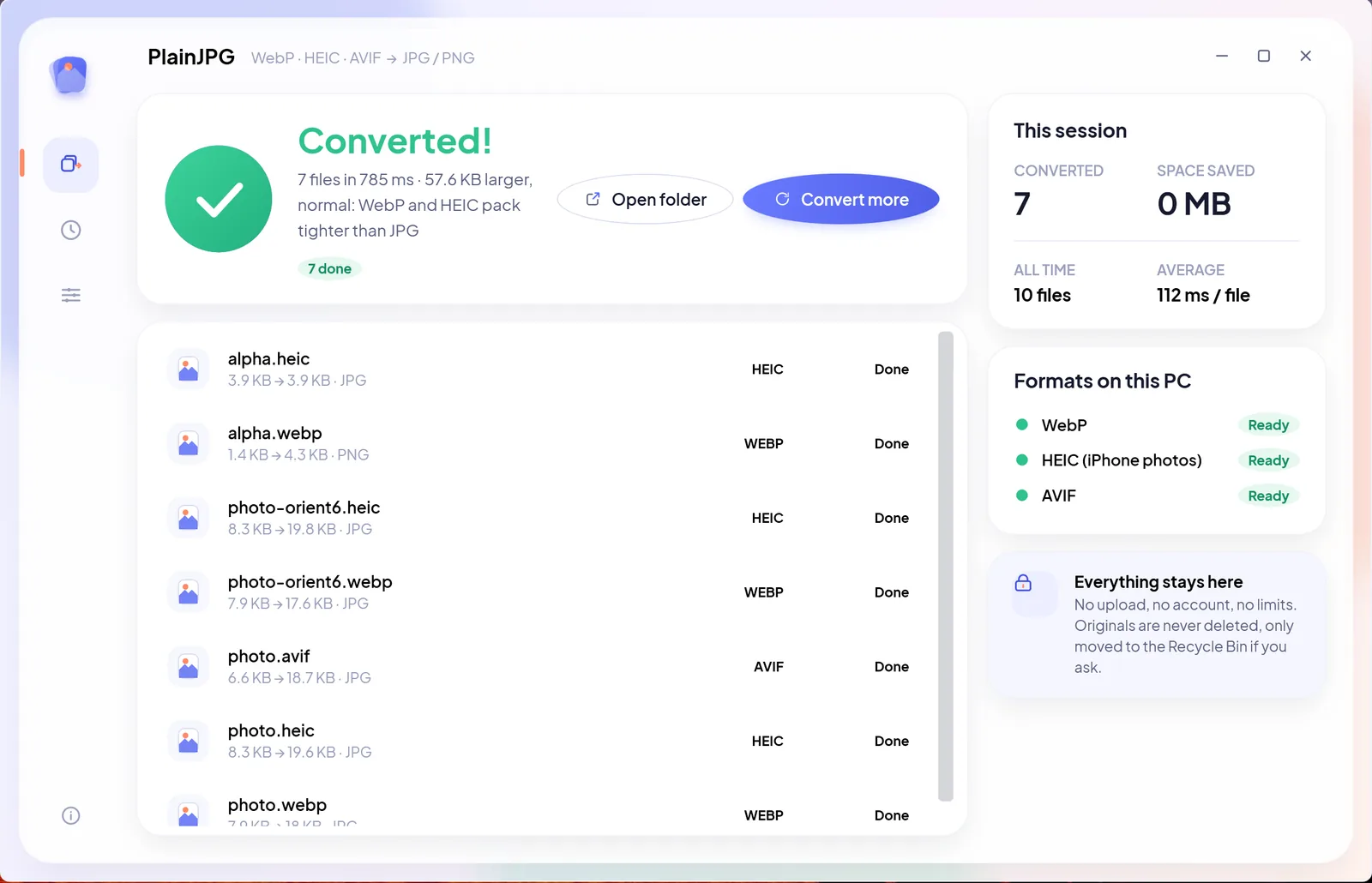
Drop the Downloads folder on PlainJPG and every WebP in it comes out as a JPG, or a PNG where the image was transparent, with its metadata and file dates kept and nothing uploaded. PlainJPG is a $15 Windows app that converts whole folders of HEIC, WebP and AVIF to JPG or PNG on the PC, keeps EXIF and file dates, nothing uploaded. The WebP decoder is built in, so it works on any Windows 10 or 11 PC with no extension. The first 25 images are free; after that it is $15 once for 2 PCs.
- Install PlainJPG from the free download (Windows 10 version 2004 or later and Windows 11, x64 and ARM64).
- Drop the files or the Downloads folder on the window, or select the
.webpfiles in Explorer, right-click, and choose Convert to JPG with PlainJPG. Subfolders are included; anything that is not WebP, HEIC or AVIF is left alone. - Leave the output on Auto, which writes JPG for photos and PNG for any image with transparent pixels, or force JPG (quality 92 by default) or PNG.
- Click Convert. Every CPU core takes a file, each row shows the new name and size, and History remembers where every batch went.
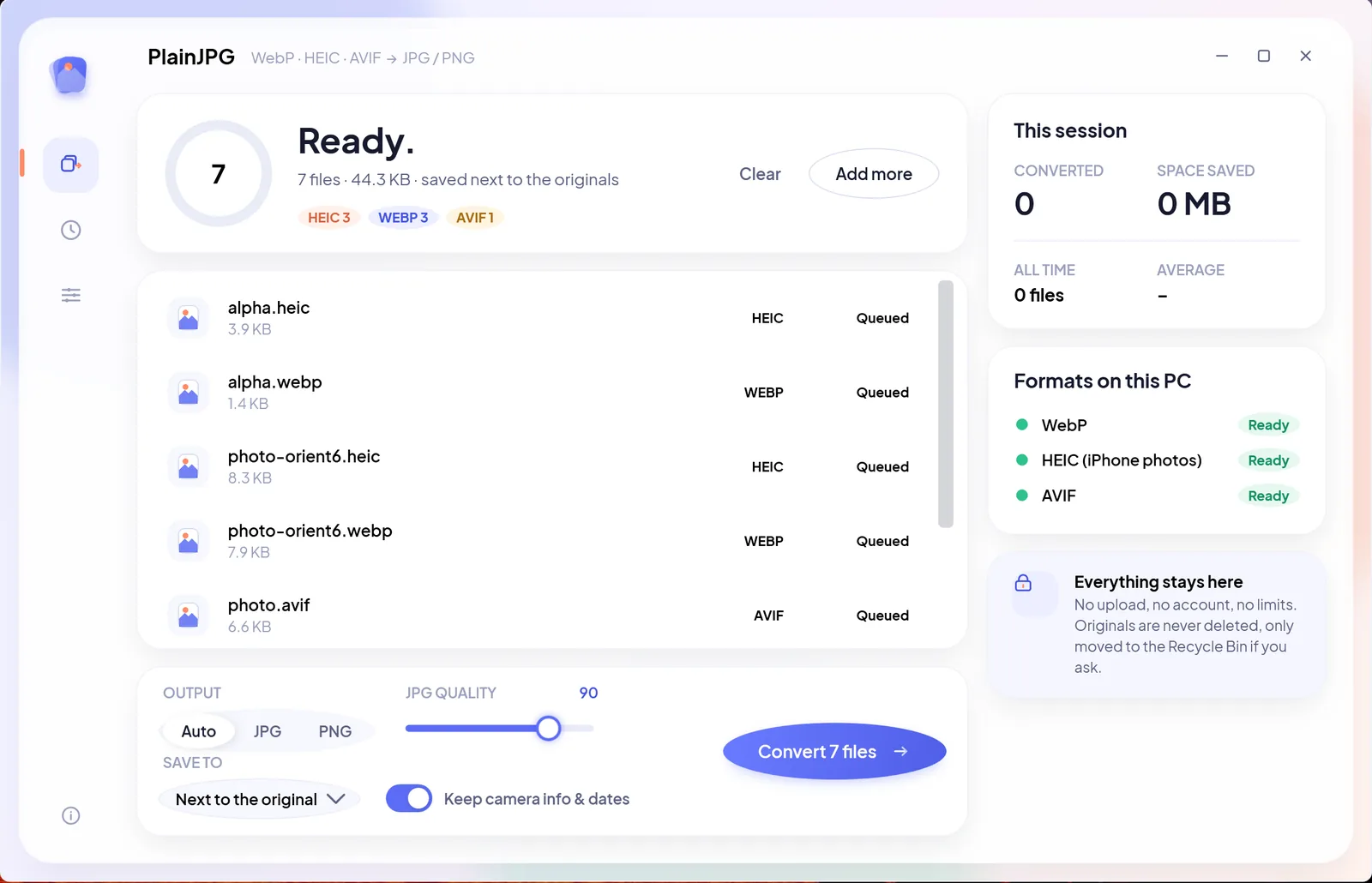
Any EXIF or XMP a WebP carried is written into the copy, orientation is corrected, and the file's created and modified dates come along, so the folder still sorts by date. Details on the WebP to JPG page; a licence is $15 once for two PCs.
Can you stop Chrome giving you WebP?
Not from the browser's settings. Chrome and Edge send one list of formats they accept, the server picks, and there is no option to leave WebP off that list. What you can control is what happens after the right-click: paste into Paint (Method 1), let an extension convert on the way down (Method 4), or collect the WebP files and convert them in one batch (Method 5). Sites that offer a Download button, as stock photo libraries and some shops do, usually hand over the original JPG through it, so try that before the right-click.
The methods side by side
| Method | Good for | Keeps metadata and dates | Many at once | The catch |
|---|---|---|---|---|
| Copy image, paste into Paint | One picture, any browser | No | No | May be the resized copy the page loaded |
| Open the .webp in Photos or Paint, Save as | Files already saved | No | No | One at a time |
| Edit the URL | Sites that store an original | Whatever the site's JPG has | No | Site by site; often fails |
| Browser extension | Pictures saved from now on | Not stated | No | Permissions; nothing for old files |
| PlainJPG | Folders, subfolders, mixed formats | Yes: EXIF, XMP, file dates | Yes | $15 once after 25 free images |
WebP to JPG questions
How do I save a WebP image as JPG on Windows?
Right-click the image in the browser, choose Copy image, paste it into Paint and use File, Save as, JPEG picture. Or save the .webp file, open it in Photos or Paint and Save as JPG. For a folder of WebP files, drop the folder on PlainJPG, which writes a JPG next to every WebP and keeps the metadata and file dates.
How do I convert WebP to JPG without installing software?
Paint and Photos are already on Windows: open the .webp in either and Save as JPG, one image at a time. Both show WebP through Microsoft's free WebP Image Extension; if a PC refuses the file, install the extension from the Microsoft Store.
How do I change WebP to JPG in bulk?
Use a batch converter. PlainJPG converts every WebP in a folder and its subfolders in one drop, in parallel, writing JPG for photos and PNG for transparent images when the output is on Auto, with EXIF, XMP and the files' own dates kept and nothing uploaded. The first 25 images are free, then it is $15 once.
What are the disadvantages of WebP?
Compatibility and limits. Older image editors, Office versions, print shops, forums, CRMs and digital photo frames often refuse it, WebP is 8-bit only with no HDR, and an image cannot be larger than 16,383 pixels on a side. Inside a browser it has no real disadvantage, which is why websites use it.
What opens a .webp file?
Every current browser, Windows Photos and Paint through Microsoft's free WebP Image Extension, and recent versions of most image editors. Anything that wants a plain JPG or PNG, which is still most upload forms and older software, needs a converted copy.
Is WebP better quality than JPG?
At the same file size WebP usually looks slightly better, and at the same quality it is 25 to 35 percent smaller, according to MDN's image format guide. Converting a WebP to JPG at quality 92 loses nothing you can see; the JPG is simply a larger file. WebP also has a lossless mode and transparency, which JPG lacks, so transparent WebP images should become PNG.

Every WebP in Downloads, a JPG in one go.
Years of saved reference images, usable again in one drop, with nothing leaving your PC. Try it on 25 images first.
Installed from the Microsoft Store? Same app, same key: paste it in Settings → Licence. Also: what is an AVIF file? · HEIC to JPG · AVIF to JPG